Reading time: 6 minutes
Hey, I haven't posted anything on my blog for quite some time and I am starting to forget the things I have done... However I was making some posts on my LinkedIn about AI agents and low-code workflow automation, so take a look, if you're interested. Anyways, although I have kind of finished my DevOps adventure, which covered the lab setup, there is only one blog post about it and I want to share everything I know now from this journey. Last time I promised I would tell you more about the configuration of VM1-CON, so let's start!
The Plan
Let's skip long introduction here, I need to do the following:
- Install Docker and components on all my VMs
- Setup bind9 for self-hosted DNS
- Configure Traefik as reverse proxy
- Install Portainer and Portainer agents for easy container management
- Setup Authentik and Authentik proxies for identity management
DNS
It's definitely easier to have domain names defined for your instances and apps. I decided to set up bind9 as my DNS. First of all I chose VM1-CON as my DNS server. Obviously bind9 should run in docker, but before that there are some things to be sorted out.
First I have to create named.conf file, where I would specify Access Control List (ACL), forwarders for DNS queries to be resolved by external DNS servers and reference to a zone config file. The file would look something like this:
acl internal {
    192.168.1.0/24; # Allow this subnet to access DNS
};

options {
    forwarders { # Forward to Google and Cloudflare
        8.8.8.8;
        4.4.4.4;
        1.1.1.1;
    };
    allow-query { internal; };
};

zone "sub-domain.domain.com" IN {
    type master;
    file "/etc/bind/subdomain-domain-com.zone";
};
Then I need to define the zone file itself and this is all the magic happens. So the file may be called something like subdomain-domain-com.zone, but obviously it should match the naming inside named.conf. Let's break down the zone file content:
$TTL 2d

$ORIGIN sub-domain.domain.com.

@       IN      SOA     ns.sub-domain.domain.com. admin.domain.com. (
                        2024122001          ; serial
                        12h                 ; refresh
                        15m                 ; retry
                        3w                  ; expire
                        2h                  ; minimum ttl
                        )

            IN      NS      ns.sub-domain.domain.com.

ns          IN      A       192.168.100.41

; -- add dns record below
con         IN      A       192.168.1.41
misc        IN      A       192.168.1.51
gen         IN      A       192.168.1.61
low         IN      A       192.168.1.71
high        IN      A       192.168.1.81

; -- apps
app1       IN       A      192.168.1.41
app2       IN       A      192.168.1.41
app3       IN.      A      192.168.1.61
app4       IN       A      192.168.1.71
BTW, If you still have the question about why I have such names for my VMs (e.g. low and high instead of dev and prod)... just get over it. Anyways, the file contains DNS authority record at the top and address (A) records below. You can clearly see that I have specified names for my VMs and my apps. In combination with docker and traefik this whole setup looks like magic in action. Before we jump to the traefik, the last thing we have to do is to create a docker compose file, specify the location of our config files and mention there 53 port to be utilized both with TCP and UDP. Spin up the container and voila!
Traefik Reverse Proxy
So we have DNS server up and running, now let's make it useful. In order to use these DNS records we need to have some apps and these apps somehow need to know that they are assigned with a specific name.
Traefik is a great reverse proxy and load balancer, which while running in a docker container reads docker socket or essentially docker API to look for containers with specific labels. Obviously traefik should run on the same network as other app containers to operate as a reverse proxy. In a static traefik config you have to specify the docker API endpoint and in a docker compose add a volume where docker.sock file is located. As entry points for traefik itself just specify two main ports 80 and 443.
Now let's test it out with some app. I wanted to have all of my apps in one place, like a dashboard or home page. So this is what we are going to deploy. My choice fell on Homer. You can check out the final look of it:
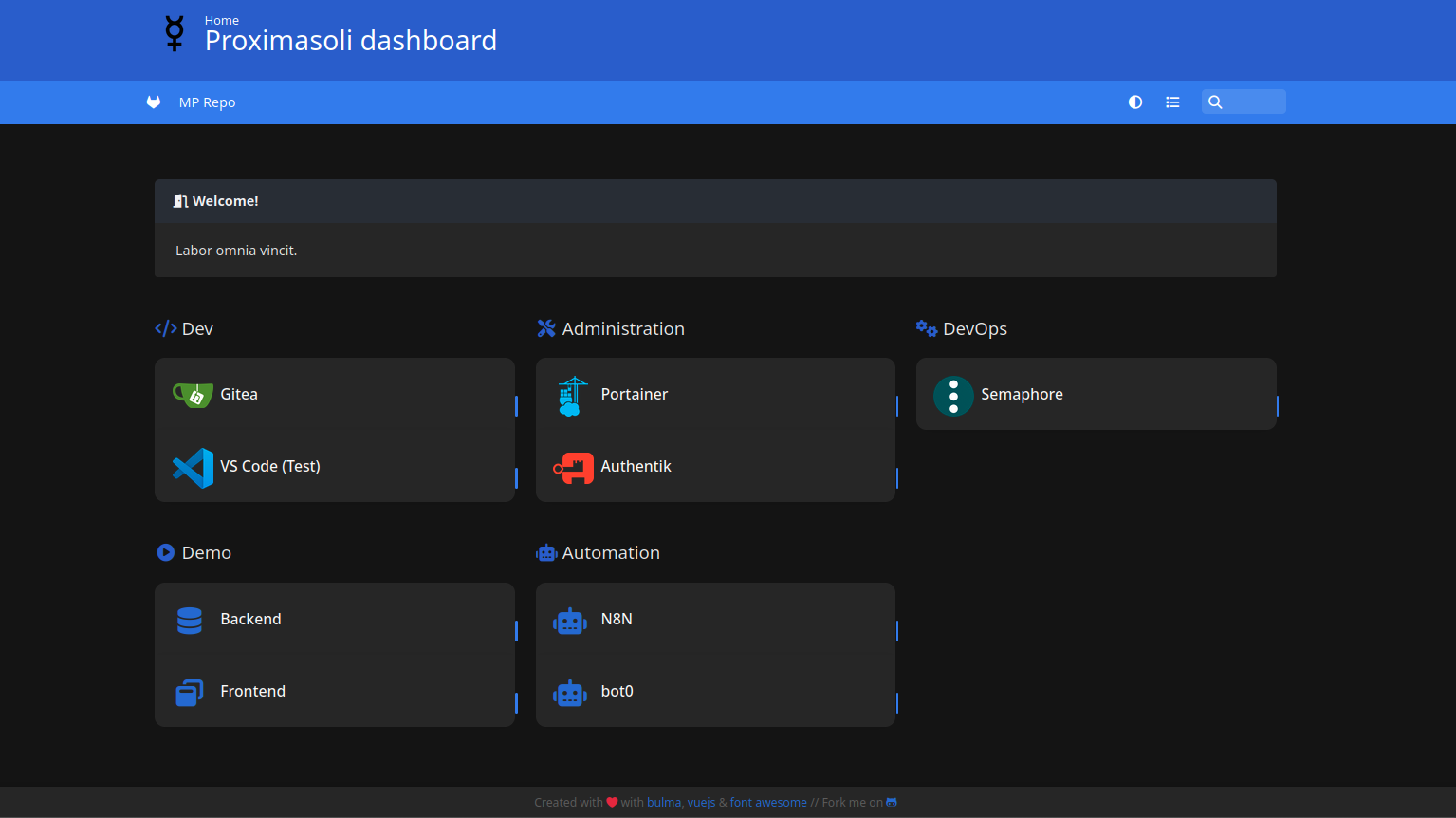
The idea is fairly simple. I just had to add specific labels to Docker compose, which would let Traefik know about Homer. Essentially we declare that Homer is running on the specific port and everytime someone wants wants to access homer.sub-domain.domain.com, Traefik would route traffic to the relevant service. Check out these Traefik docs.
Portainer
So since I am working with containers and there are going to be plenty of those in my setup, it is nice to have a GUI platform to manage these. Portainer is the one I have found to be the most popular and it also has some other capabilities I could utilize in the future. Again, nothing fancy or tough here, just another Docker compose, however one nuance was actually a bit confusing for me at first. Since I am going to have several hosts with Docker containers and I obviously would want to have only one Portainer to manage everything, at first I have tried to expose Docker API on every host, which is an insecure aporoach, but I was okay with that at first. Then in later stages, I had some issues where the statuses of my containers were now syncing for some reason and that was definitely related to Docker API exposure. So I have found that an easy solution would be just to use an additional container on all of these remote hosts (except for the main one, where Portainer is running), which was Portainer agent. It would mount to Docker socket and run on port 9001. You would have to configure Portainer to connect to Portainer agents and they would establish encrypted connection and provide live sync. But surely enough you can create a separate DNS entry for each agent and run it securely behind Traefik which would provide additional encryption with a Let's Encrypt certificate.
Authentik SSO
That one was pretty interesting. Took some time to figure that out, but there are some really nice. tutorials out there and I will mention one a bit later. So the whole idea was that I want to connect to my apps SSO style. I would open Homer dashboard, pick an app, sign in and then it would work for other apps as well. First I had to configure Portainer for that. Luickily it is pretty easy, as it supports custom OAuth providers. Once it was done I was blown away about how smart I am 😁. But actually whole credit goes to Christian Lempa, who had this specific setup described in his great video. A bit later I faced a non-standard issue, which I had to figure out myself with some tweaking, but more on that in the next posts.
Be curious, proactive and take care.
Best regards,
Ed